Use the terminal UI
quilt tui is a full-screen app for watching and controlling your system from a terminal. It
updates live from the notifier stream and works in a terminal as small as 100×30.
pip install "quilt-hp-python[cli]"
quilt login --email you@example.com   # once; tokens are cached
quilt tui
Press ? on any screen for every key. The screenshots below come from the project's render
tests, so they match what the app draws; the system in them is a real one with its names and
identifiers replaced.
Home
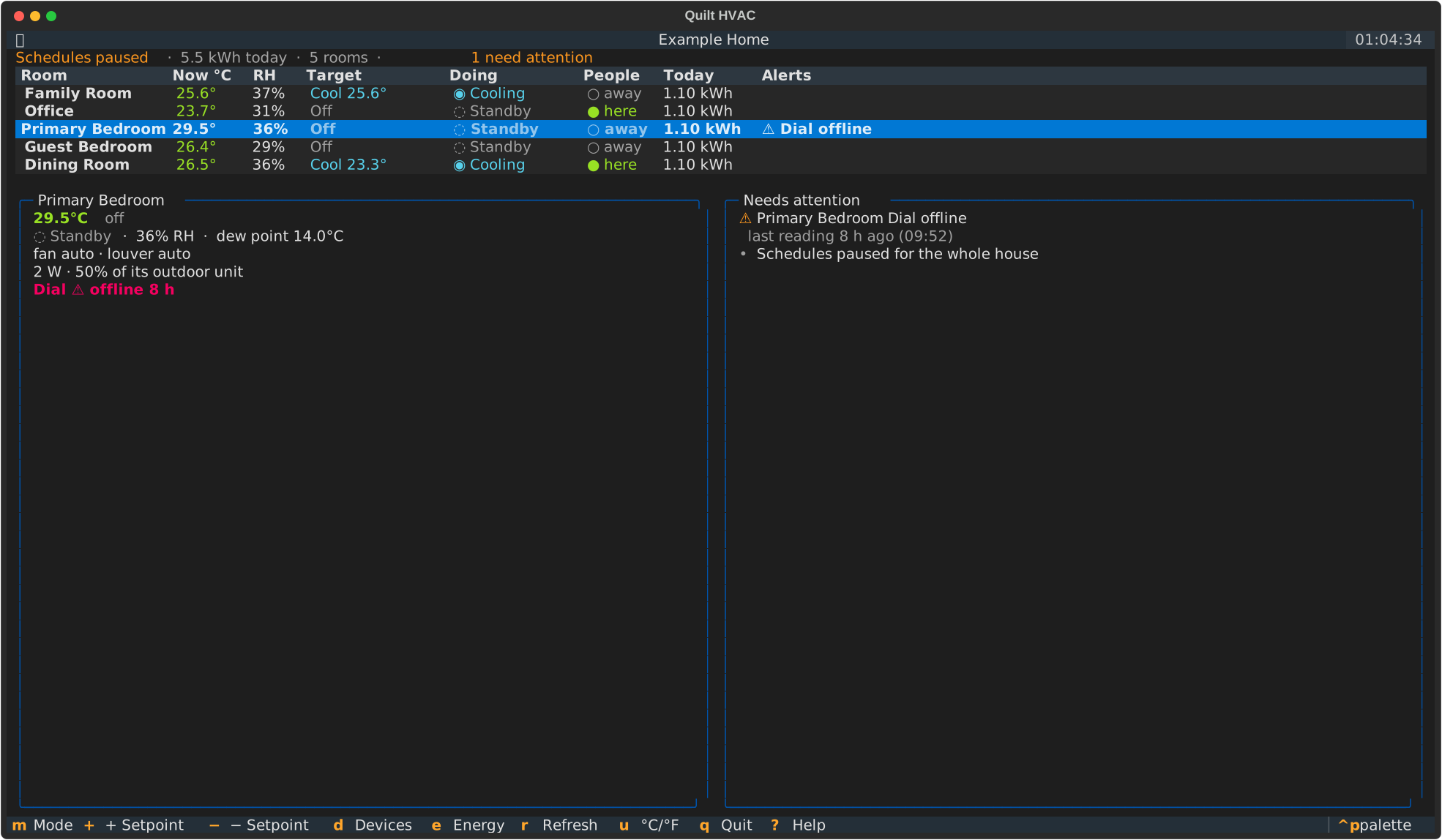
Every room in one table: temperature and humidity, what it's set to, what it's doing, whether anyone is there, and today's energy. The panel on the left summarises the selected room. Needs attention lists anything you should know about: offline devices (with when they last reported), faults, tests in progress, firmware updates and paused schedules.
| Key | Action |
|---|---|
↑ ↓ |
Choose a room |
enter |
Open the room |
m |
Next mode for the selected room |
+ − |
Raise or lower the setpoint the mode uses (in Auto, the one nearer the room temperature) |
d |
Devices |
e |
Energy |
P |
Pause or resume schedules for the whole house (asks first) |
O |
Turn every room off (asks first; schedules can turn rooms back on unless paused) |
r |
Refresh |
Quick presses build on each other: two + presses from 24 °C send 24.5 °C and then 25 °C.
Room
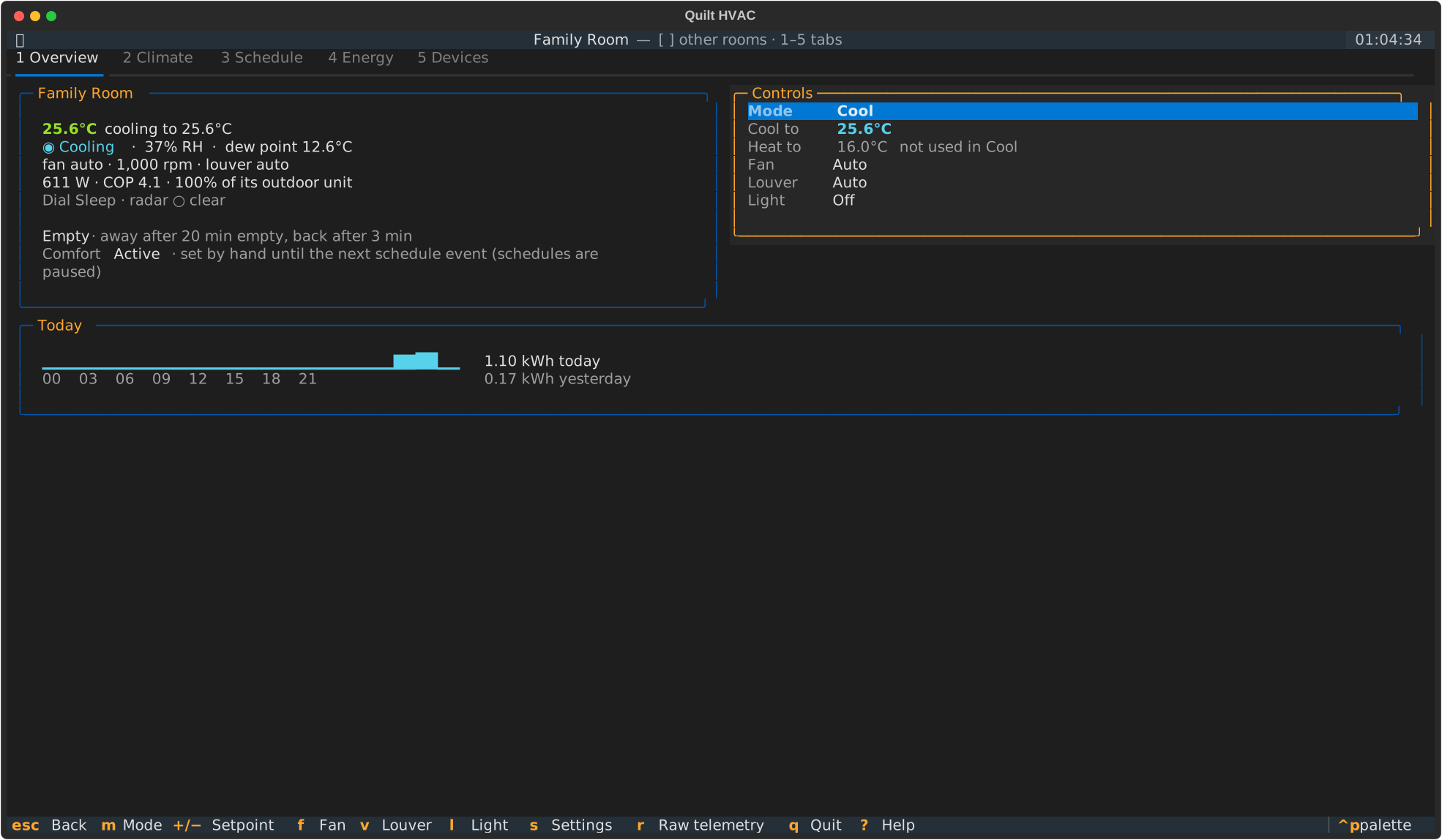
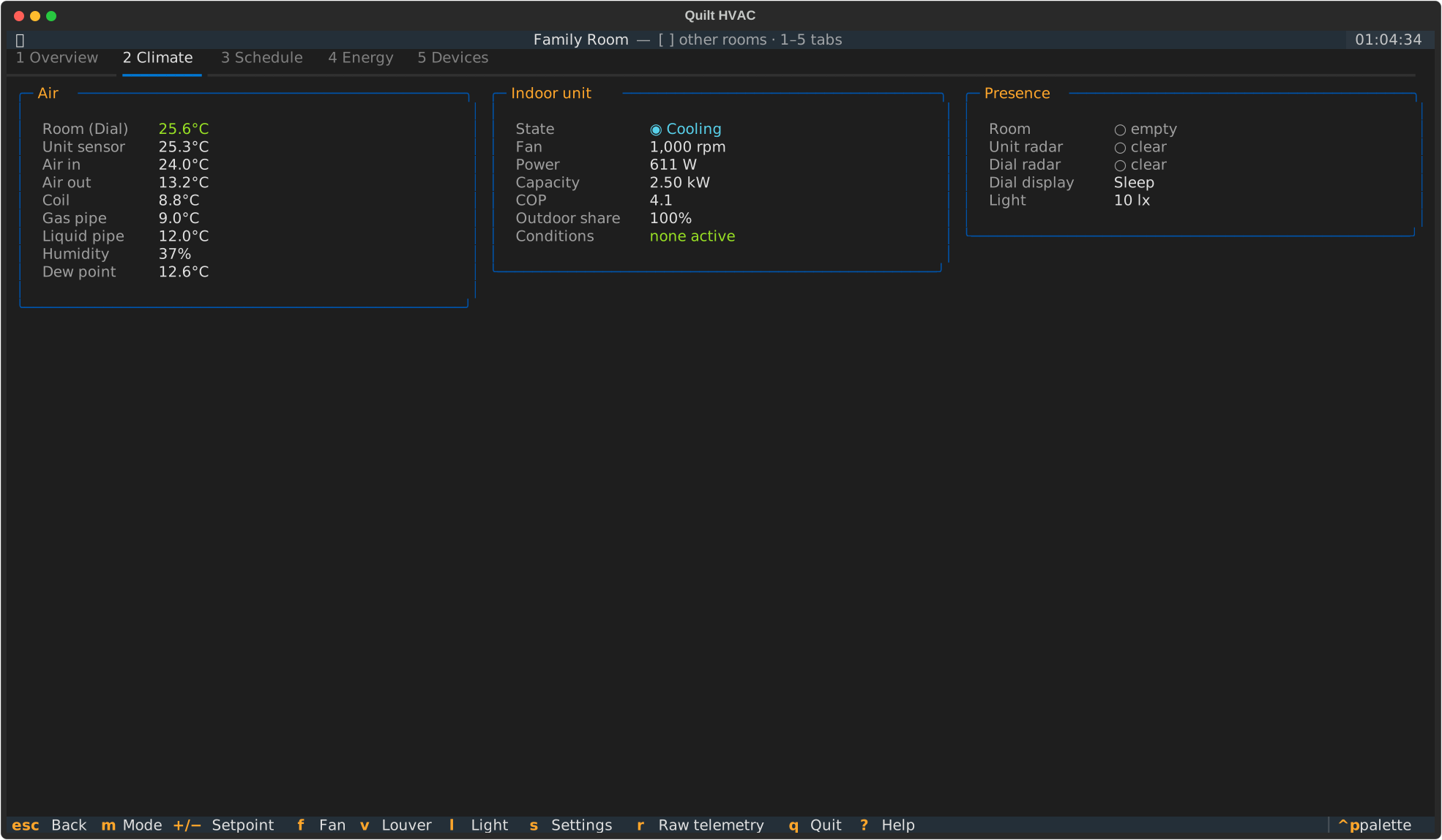
Five tabs, switched with 1–5. [ and ] move to the previous or next room and stay on
the same tab; esc goes back to Home.
- Overview — the room's state, occupancy and auto-away timing, the comfort setting in
effect and how it was set, and the controls list:
↑↓choose a control,←→change it,entertypes a setpoint. A setpoint the current mode doesn't use is dimmed. - Climate — every temperature source by name (the Dial, the unit's own sensor, air in and out, coil and refrigerant pipes), humidity and dew point; the indoor unit's power, capacity, efficiency and any active conditions; presence from each radar.
- Schedule — the week at a glance (view only).
- Energy — today, yesterday, 7 and 30 days, today by hour, and the last 14 days.
- Devices — the room's indoor unit, Dial and outdoor unit with their details.
| Key | Action |
|---|---|
m |
Next mode |
+ − |
Raise or lower the setpoint the mode uses |
f |
Next fan speed |
v |
Next louver mode |
l |
Light on or off |
s |
Room settings: auto-away timing, Away temperatures, presence-sensor range and height, default light brightness |
r |
Show raw telemetry (Climate and Devices tabs) |
Devices
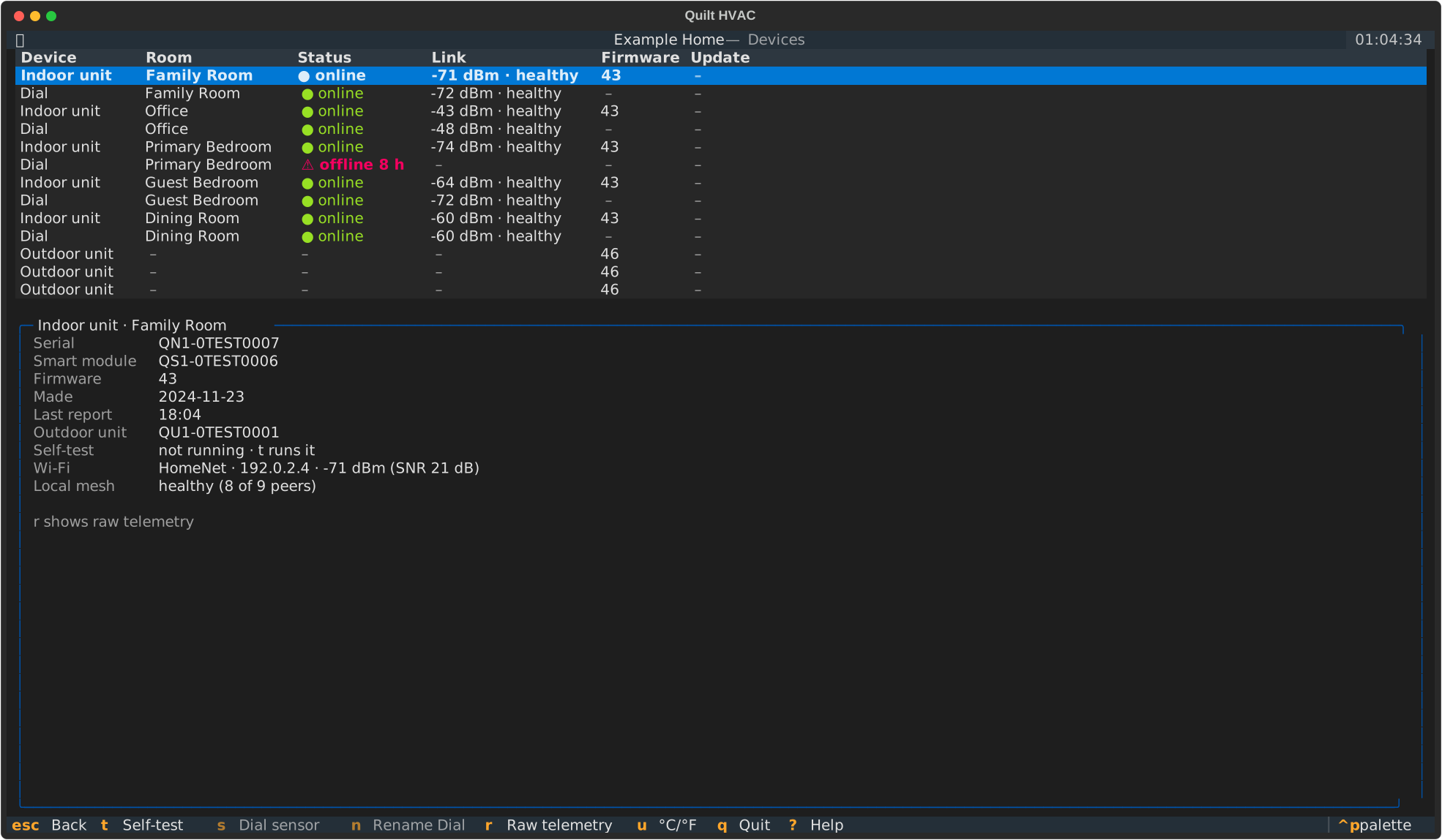
Every indoor unit, Dial, remote sensor and outdoor unit, grouped by room, with online status,
Wi-Fi signal, mesh health, firmware and update progress. An offline device shows how long ago
it last reported instead of stale readings. The selected device's details are shown below;
r adds its raw telemetry.
| Key | Action |
|---|---|
t |
Indoor unit: run its diagnostic self-test, or cancel a running one (asks first) |
s |
Dial: control the room to the Dial's temperature or to the indoor unit's sensor (asks first) |
n |
Dial: rename it |
r |
Show raw telemetry |
Keys that don't apply to the selected device are dimmed in the footer.
A self-test is the app's Run diagnostic test: it takes up to 30 minutes, during which the room can't be heated or cooled, and its results go to Quilt (and your certified partner, if you have one). The unit's details show whether a test is running, and Needs attention on the Home screen lists it while it does.
Energy
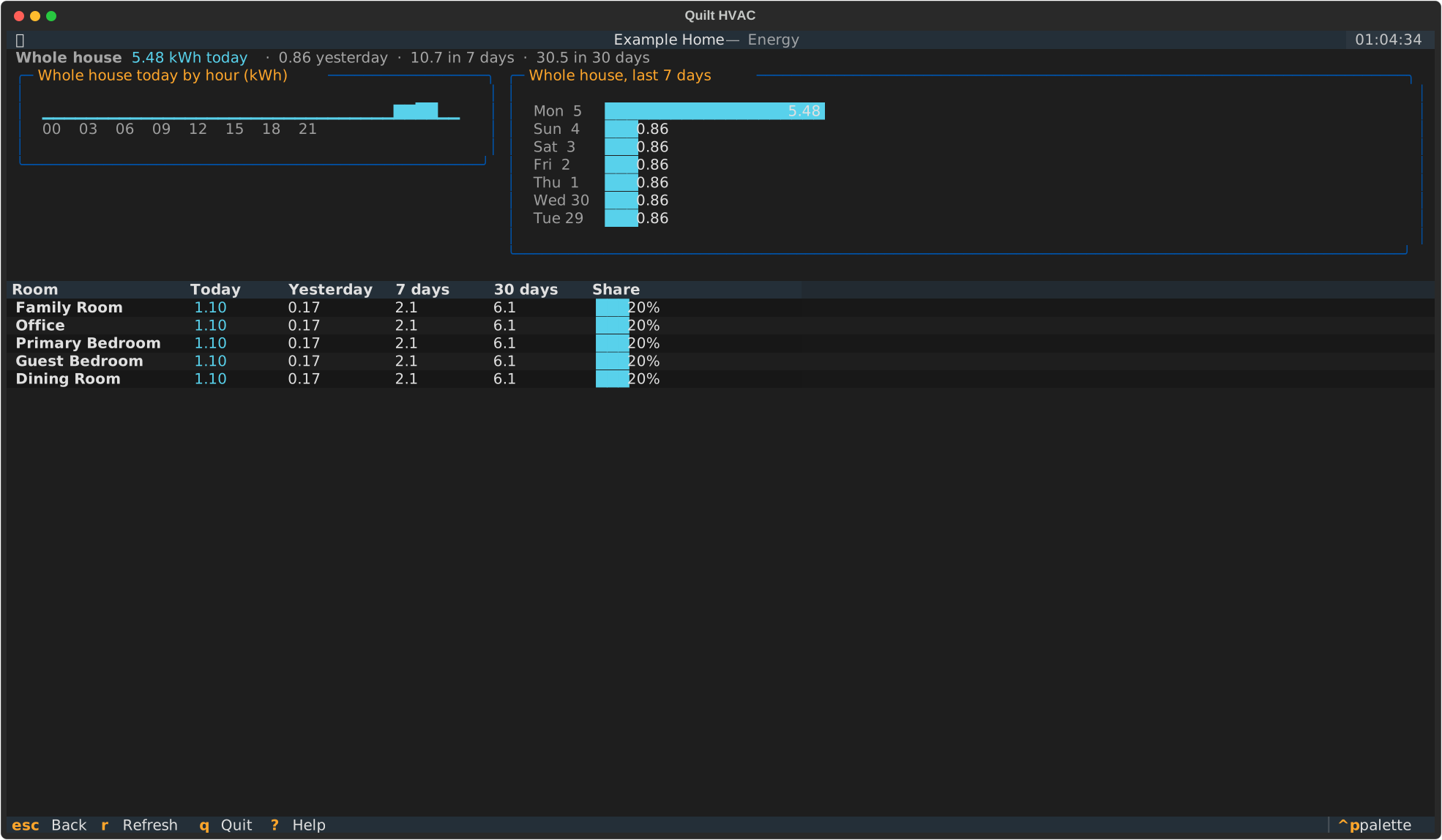
The whole house today by hour and over the last week, and each room's use today, yesterday, over 7 and 30 days, and its share of the house's 30-day total.
Everywhere
| Key | Action |
|---|---|
? |
Every key for every screen |
u |
Switch between °C and °F (remembered) |
ctrl+p |
Command palette, including the theme (remembered) |
q |
Quit |